
Coex - Onboarding Business App users
Co-existence allows you to connect your existing WhatsApp Business App number to Gupshup.
- WhatsApp business App users can connect to Cloud API and take advantage of the automations
- You can still use the WhatsApp Business App as usual
- Chat history remains synced between both
Know Limitations from Meta
No Payment attached to the WhatsApp Business App
- Please ensure that no payment method (card or any other local payment option) is linked to your WhatsApp Business App.
- This will not allow Gupshup to attach our credit line.
- Recommedation here is that you remove all the payment method before proceeding.
Known Meta Issues
-
Phone number not eligible for Co-existence
- Meta has not yet shared the eligibility criteria for phone numbers
- No workaround or resolution has been provided so far
-
“Error Object” while submitting phone number
- Occurs during the onboarding flow
- Meta has not shared updates or a fix yet
-
Multiple or inconsistent onboarding errors
- Errors may appear at different steps of the flow
- Currently under Meta investigation, with no confirmed timeline
-
Inconsitent Events
The blow-mentioned webhooks/features are currently experiencing issues from Meta’s end.
- History events
- Contact sync
- Smb_message_echoes
For all the above-mentioned issues, we will update the documentation or share additional information once we receive further clarification from Meta.
Note: All apps will receive DRL events as they used to.
Before You Start (Quick Checklist)
Please make sure:
- Your WhatsApp Business App version is 2.24.17 or higher
- Your phone number country is supported
- Facebook login with Business Manager access
- Ability to scan a QR code from your WhatsApp Business App
- Your Whatsapp account in business App should be 3 months old with active messaging
Countries currently not supported
Nigeria and South Africa
Enablement
There is no enablement required. You can continue creating apps through Self Serve UI (gupshup.io)
Onboarding Steps
-
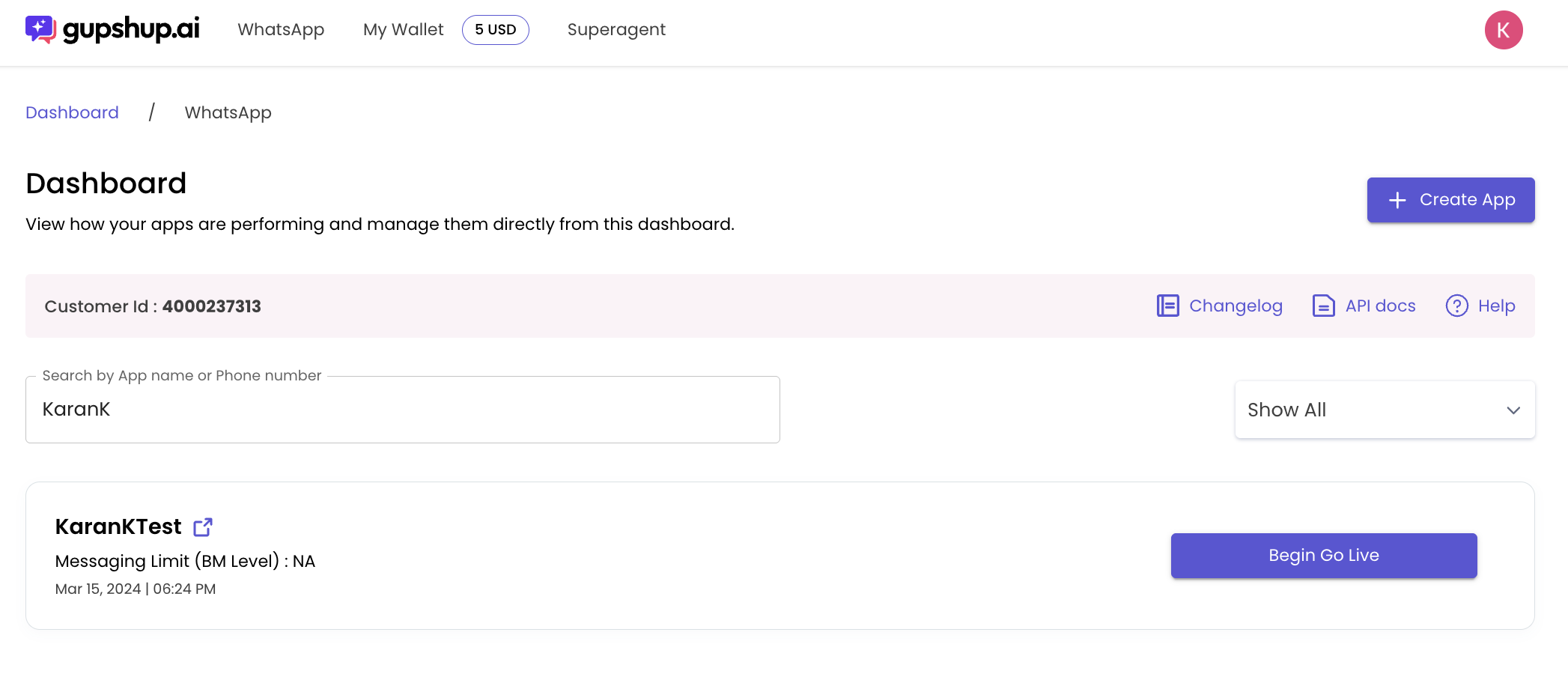
Create a new App or choose any non-live app that you have and click the Begin Go Live button to start the Go Live flow:
-
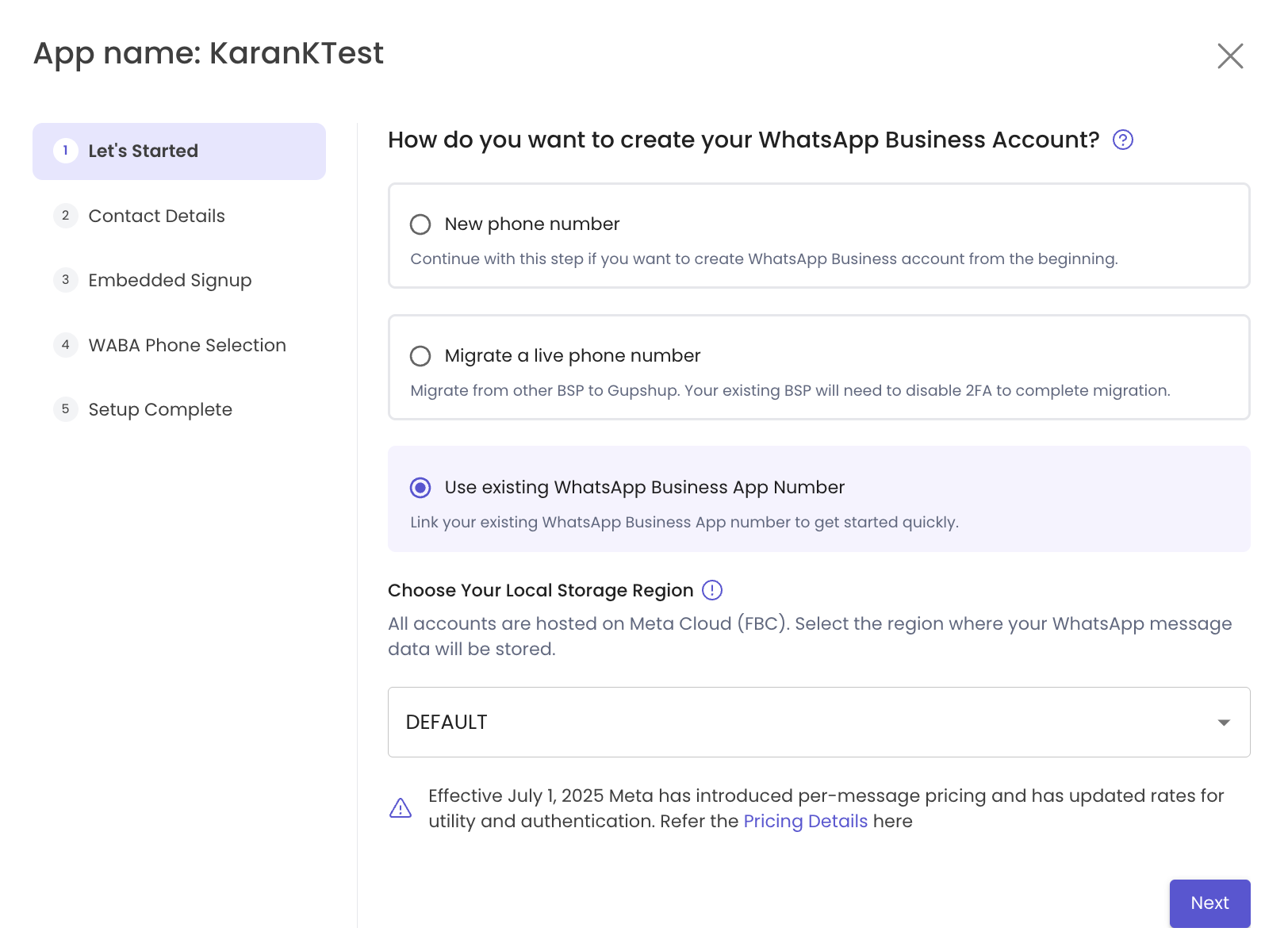
You will see an option to use an existing WhatsApp Business App number, select use existing WhatsApp Business
-
Select your local storage region if required; otherwise, let it be DEFAULT and click Next
-
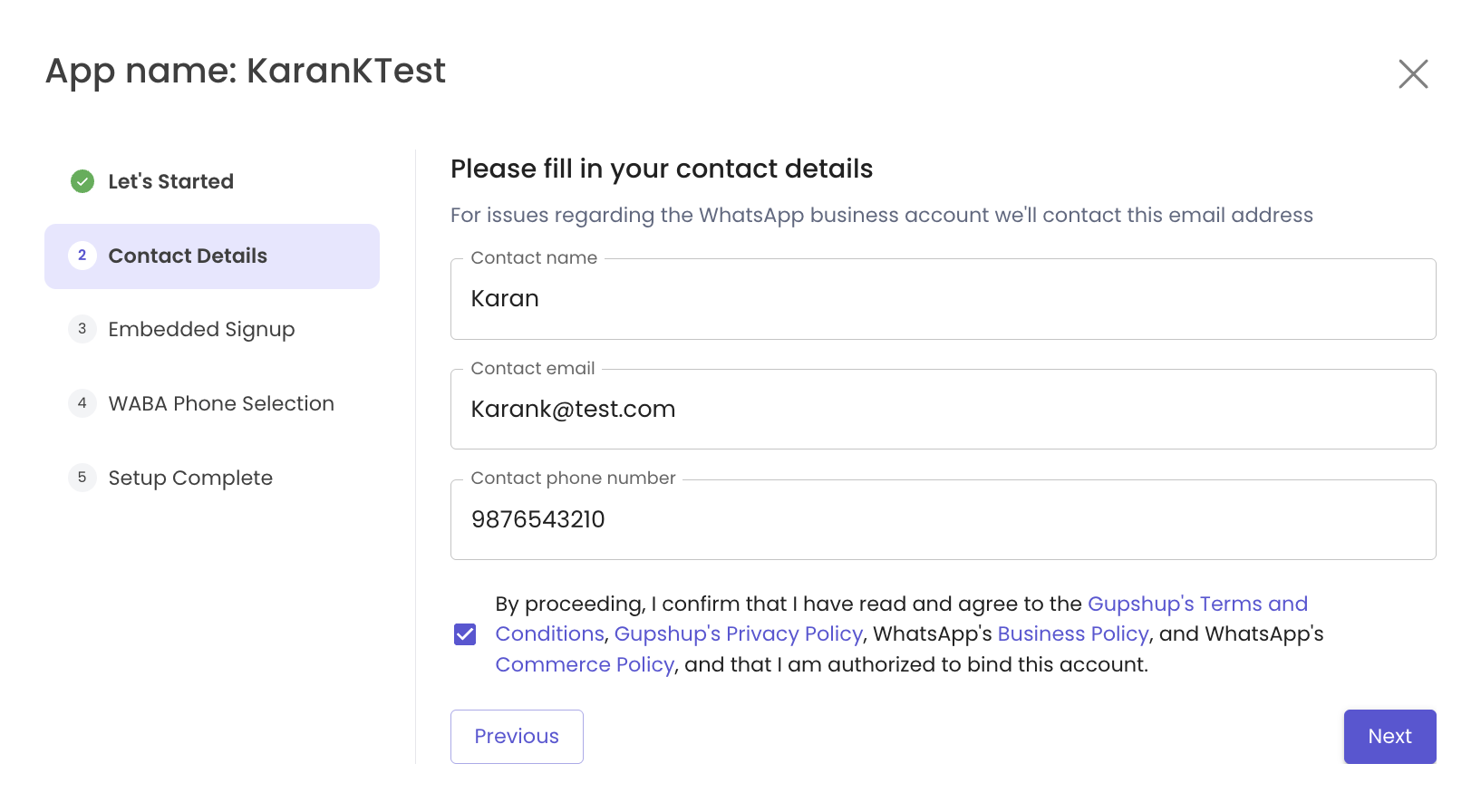
Enter the contact details, select the terms and conditions, and click Next.
-
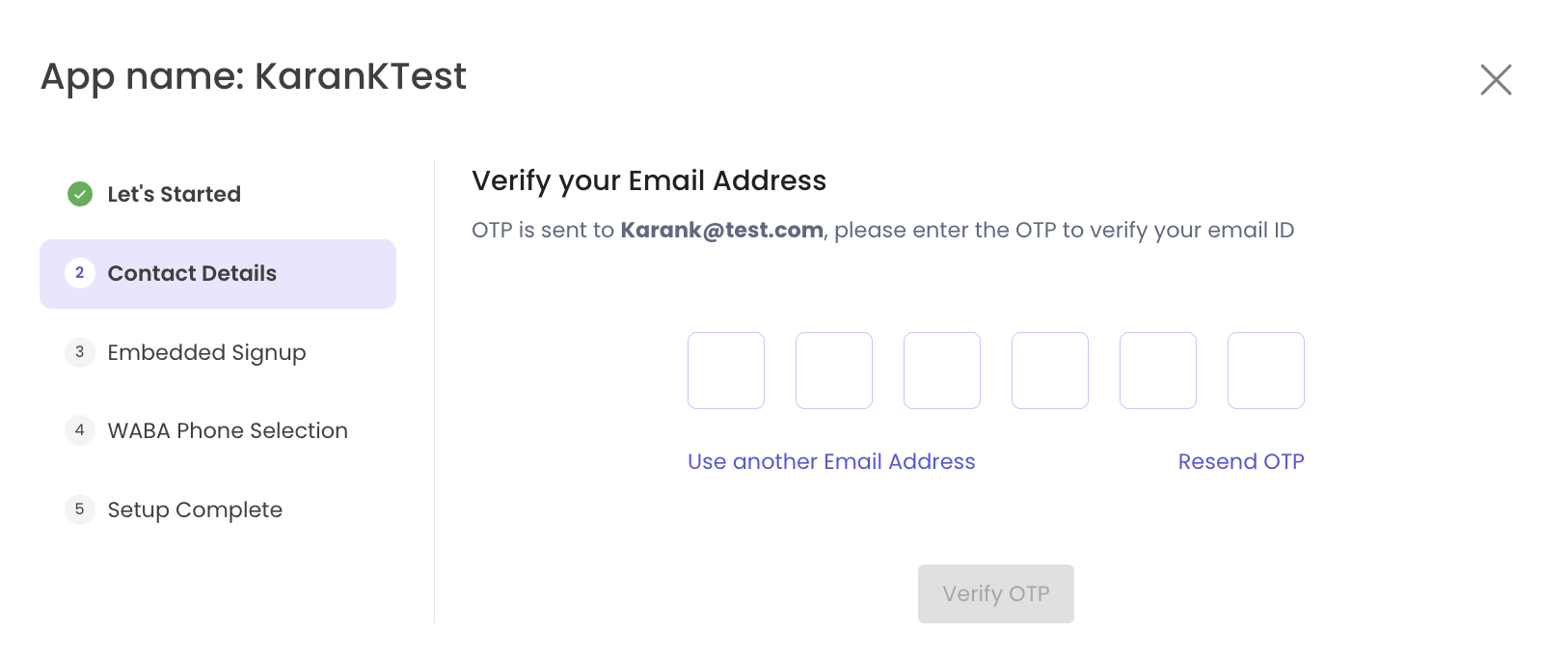
Confirm Contact details
-
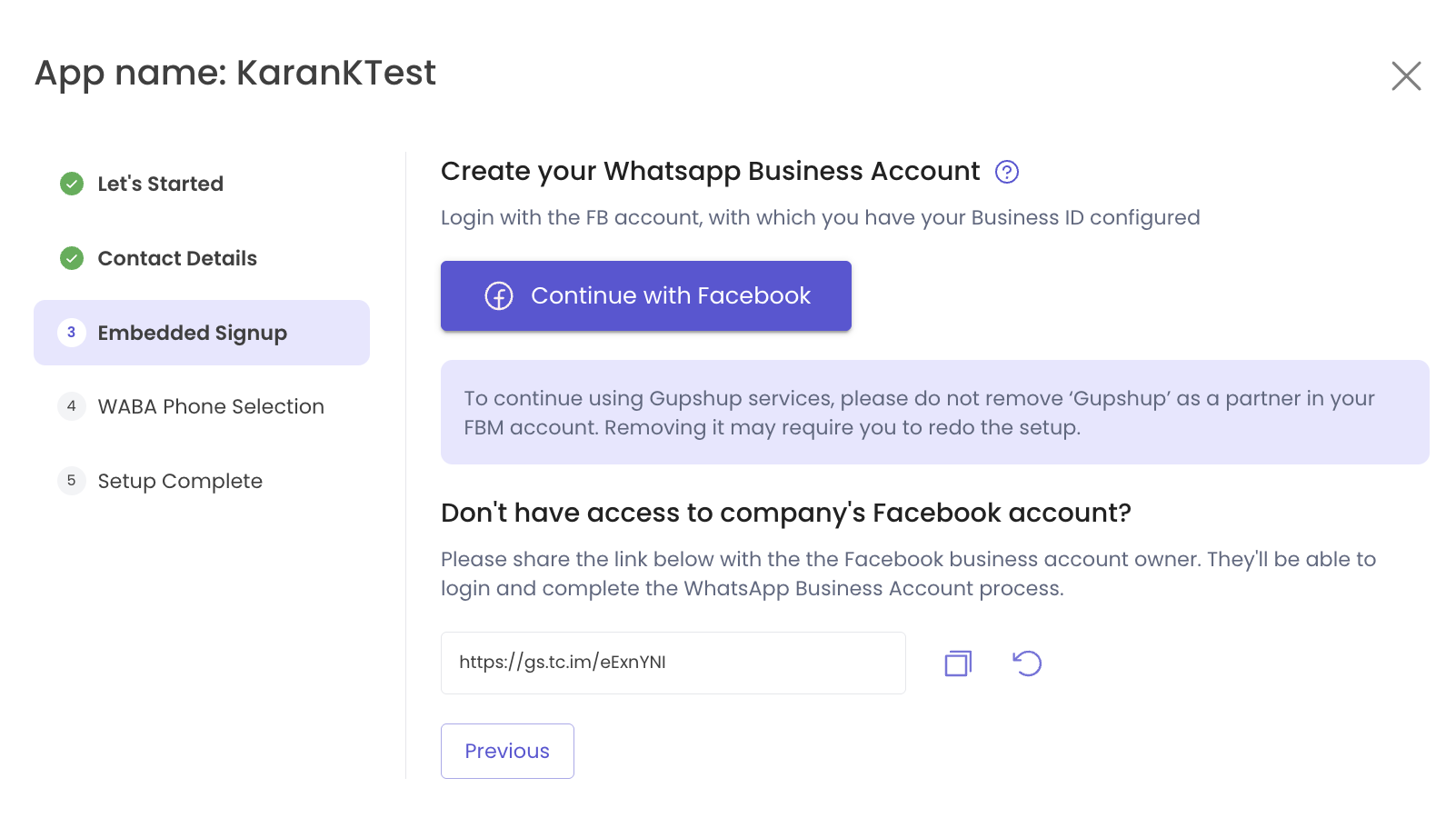
Click on Continue with Facebook or use embed signed link to process
-
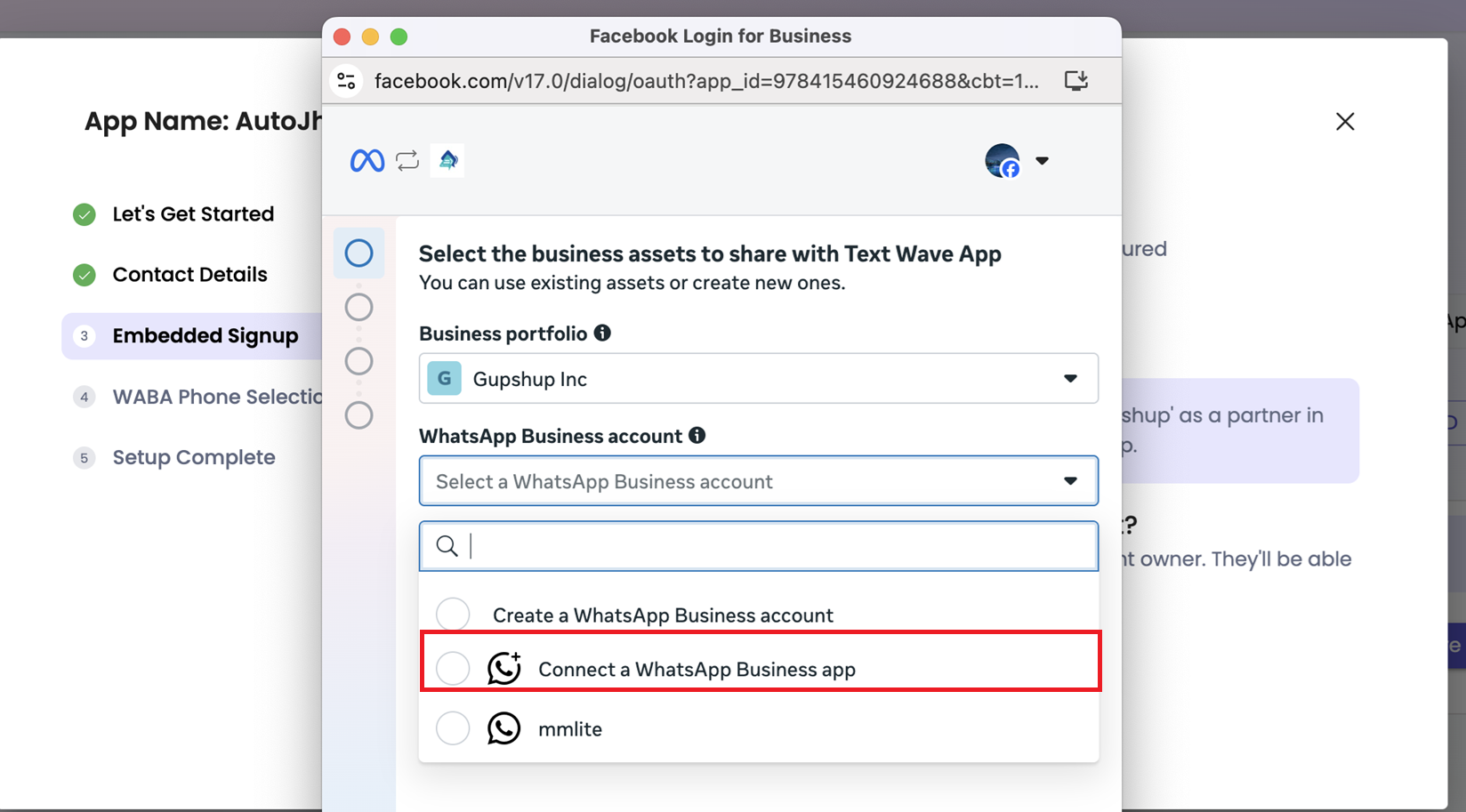
Click Continue, select Business portfolio then Connect a WhatsApp Business app from the WhatsApp Business account tab, and click Next.
-
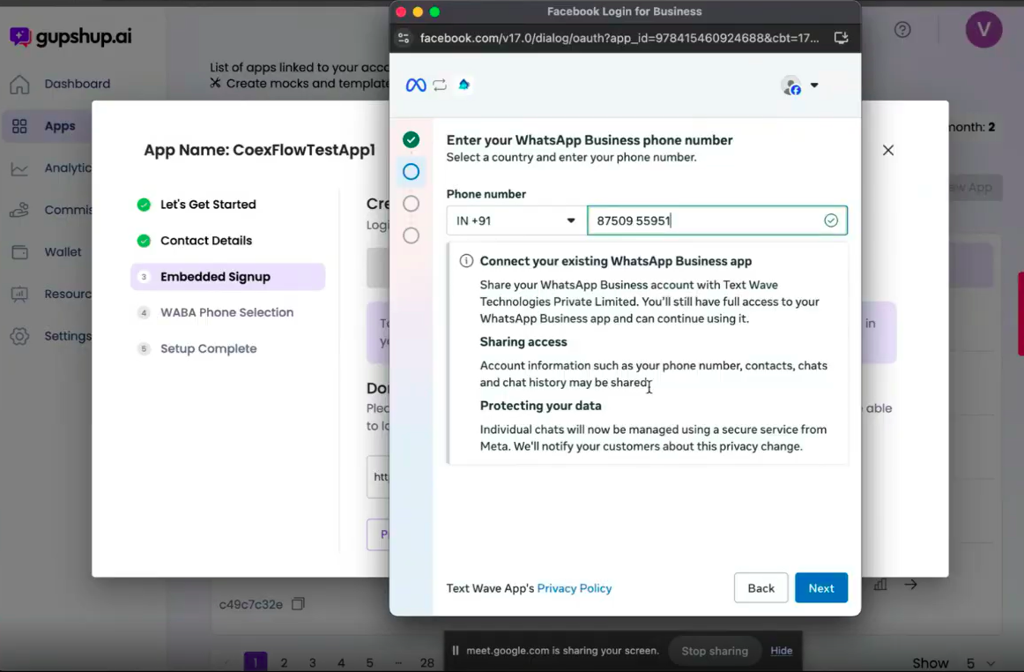
Enter a WhatsApp Business app phone number and click Next
-
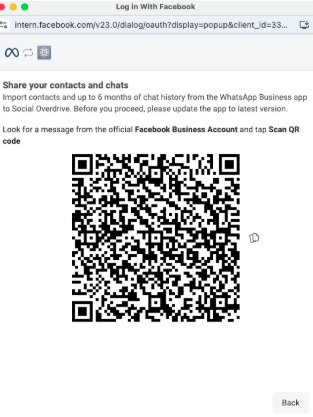
Businesses that select this option and enter their WhatsApp Business app phone number will see a QR code and instructions to check for new WhatsApp Business app messages:
-
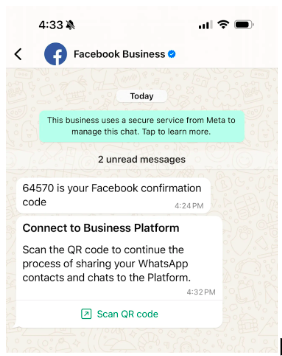
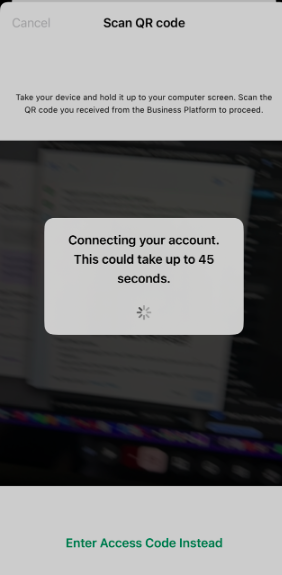
The WhatsApp message instructs the business to use the app to scan the QR code displayed in Embedded Signup:
-
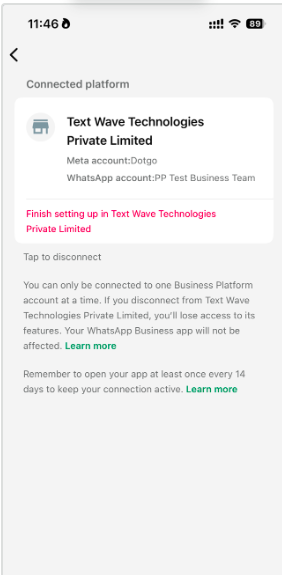
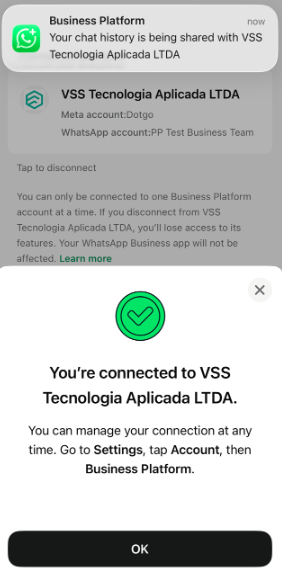
Connect to the Business Platform and complete the process
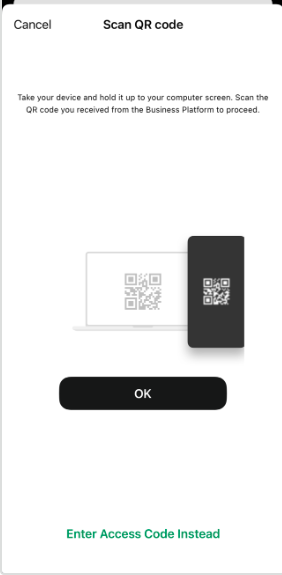
Note: You can either use QR code scan or use access code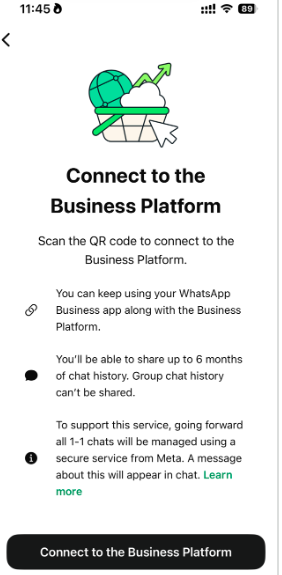
-
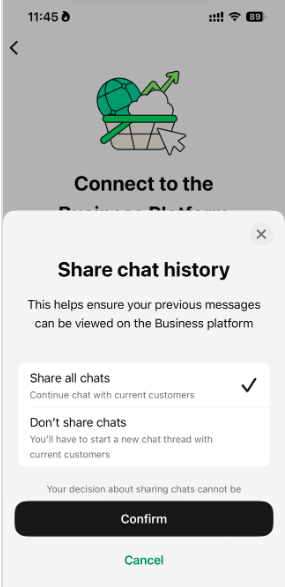
Please ensure that all chats are shared if you want to receive history events. If chats are not connected here, Meta will not share the history events.
Also, if you skip this step now and decide to enable it later, you will need to deregister your WABA from the Cloud API and complete the onboarding process again.
Please refer to the Sync API section to learn more about triggering history events. Please ensure that all chats are shared if you want to receive history events. If chats are not connected here, Meta will not share the history events.
-
After all the above Successful process, on the FB page select the time zone and complete the shown process by clicking on the Confirm and Finish buttons
-
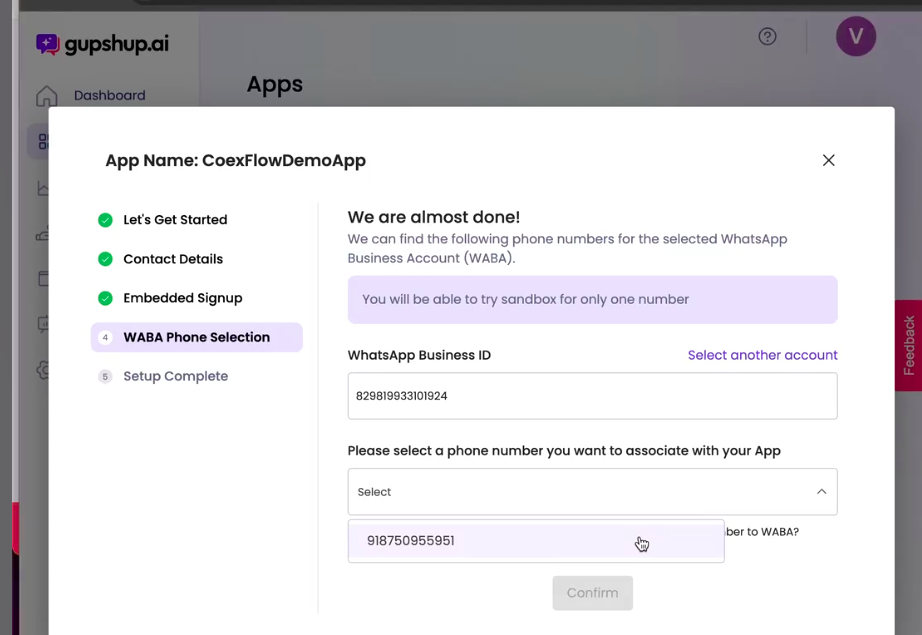
After Completion of FB Process Get Back to Gupshup page for waba phone number selection. Select phone number and click Confirm
-
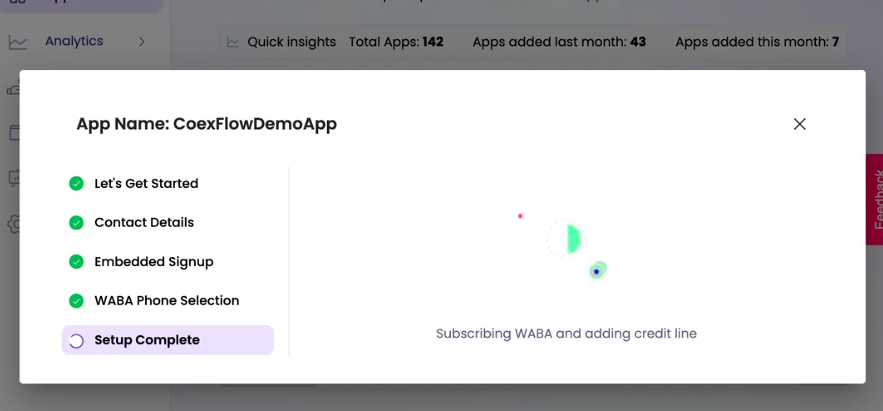
Wait for setup completion. After successful setup completion, the app is ready to use
Sync UI - To trigger history and smb_app_state_sync
history and smb_app_state_sync
Please note the following before you trigger Contact and History Sync events:Before triggering the sync please ensure you have setup a callback URL or webhook URL with Coexistence mode enabled as listed below under Coexistence Webhooks section
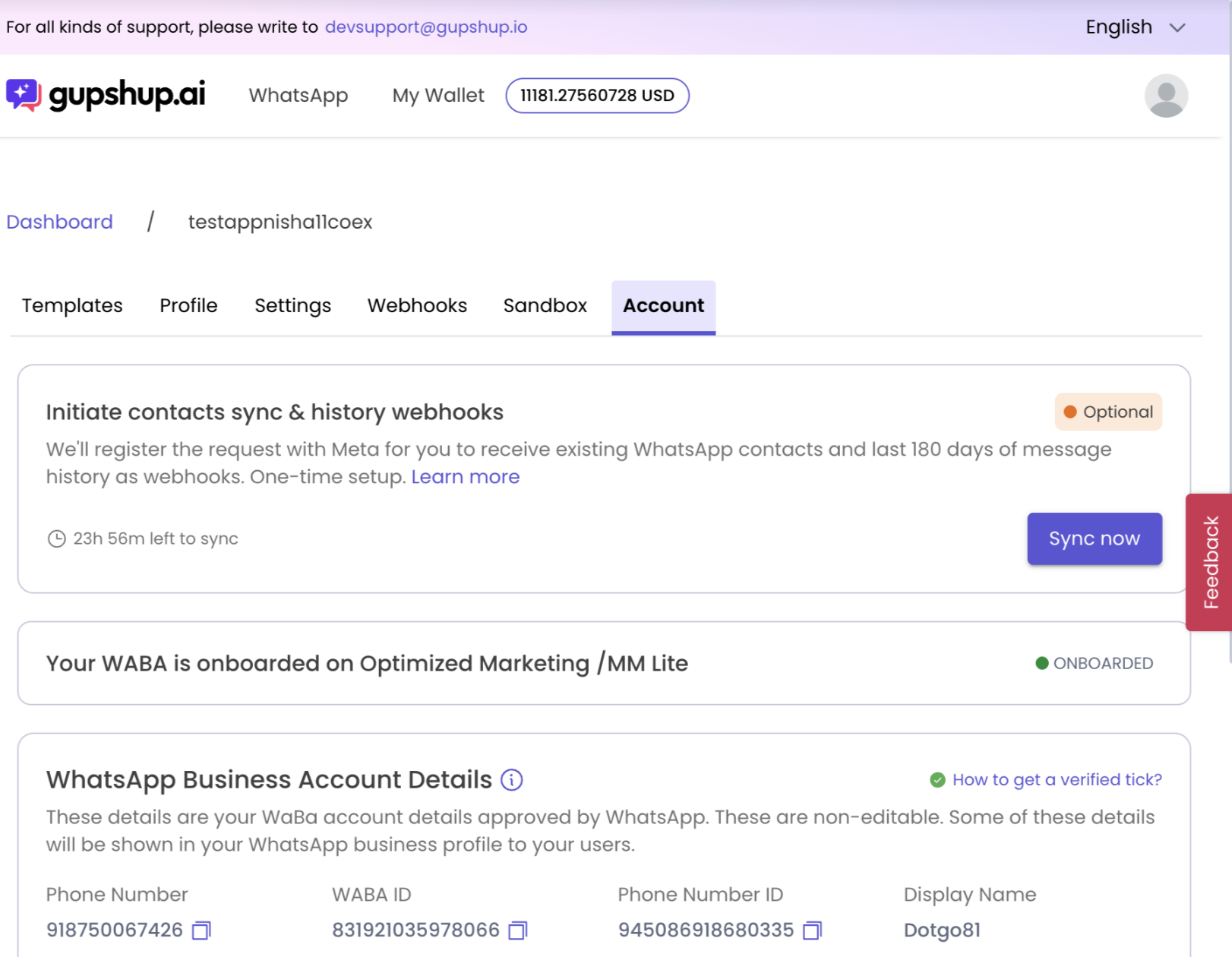
Both smb_app_state_sync and history synchronization can be triggered only once, and must be initiated within 24 hours of onboarding.
Steps to trigger this
-
After doing a successful embed signup with Coex, navigate to the Account tab for the specific app that you have just made live on Coex
-
There you will get an option to trigger the sync on contacts and history events. Once inisiated, you will receive an event from Meta on the webhook URL as mentioned in the meta document here.
Coexistence Webhooks
Note regarding Media URLs in events:For CoEx, we forward the v3 events exactly as received from Meta without any modifications. Meta now provides only the Media ID instead of a direct media URL.
Now you are ready to start messaging from Whatsapp business app and Whatsapp cloud API.
Need Support?
For any support requests, questions, or issues, please reach out to [email protected], and our team will assist you with a resolution.
Please note that most Coexistence-related issues originate on Meta's side.
Kindly set expectations accordingly, as the resolution timeline for such cases may vary and can be dependent on Meta's investigation and response.
Updated 3 months ago